
ScopeMaker
Start Every Preconstruction Project on Solid Footing
Start each preconstruction project with the right structure, exhibits, and shared project information already in place. Use Zurel ScopeMaker to organize workspaces, set up exhibits quickly, and give your team a solid foundation to build from.
Getting started on the right foundation and structure is half the battle—Zurel ScopeMaker makes it easier.
Getting started on the right foundation and structure is half the battle in preconstruction. Too often, teams begin by sorting through the spec table of contents, creating trade structure manually, finding the right exhibits, copying documents into the right places, and updating repeated project information across them before real scope work can even begin.
Zurel ScopeMaker helps teams start on solid footing and move quickly. By structuring the project around divisions and spec items, organizing documents in the right workspaces, setting up exhibits efficiently, and updating shared project information automatically, teams can begin with a cleaner, more accurate foundation.
Key ScopeMaker features for starting every preconstruction project on solid footing
Project Divisions & Specs
Import divisions and spec items from the TOC so your bid package structure starts precise and accurate.
Workspace Folders
Organize project and trade exhibits in the right folders from the start so your team can build on a solid foundation.
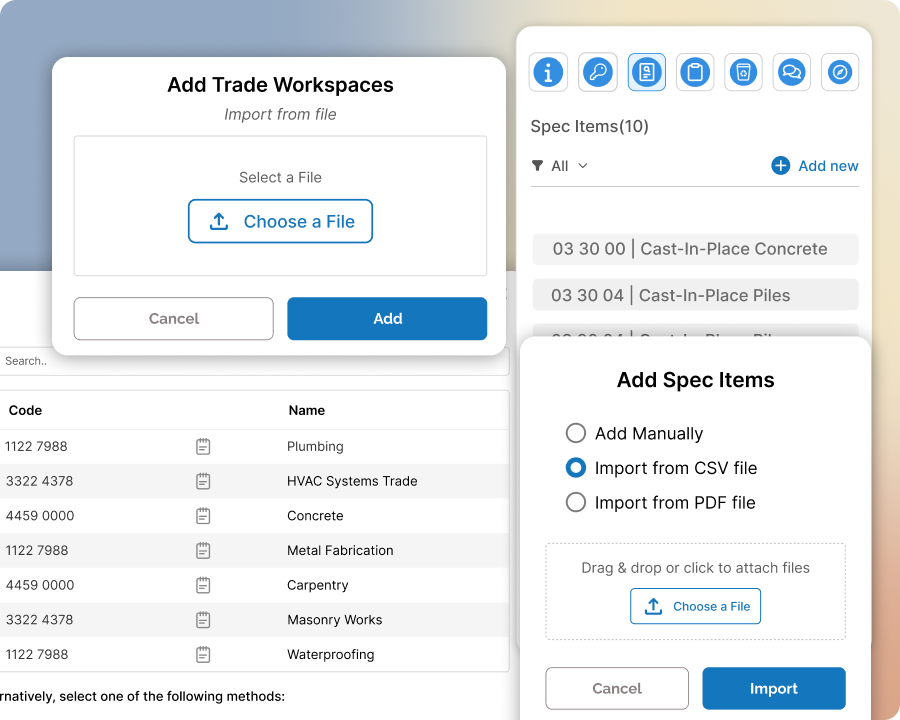
Project Divisions & Specs
Import divisions and spec items from the TOC and start with a bid package structure that is precise and accurate.
Bring in divisions and spec items from the table of contents at the beginning of preconstruction so your project starts with a clear structure. Organize work around the actual specification framework, reduce manual setup, and give your team a stronger foundation for building trade content.
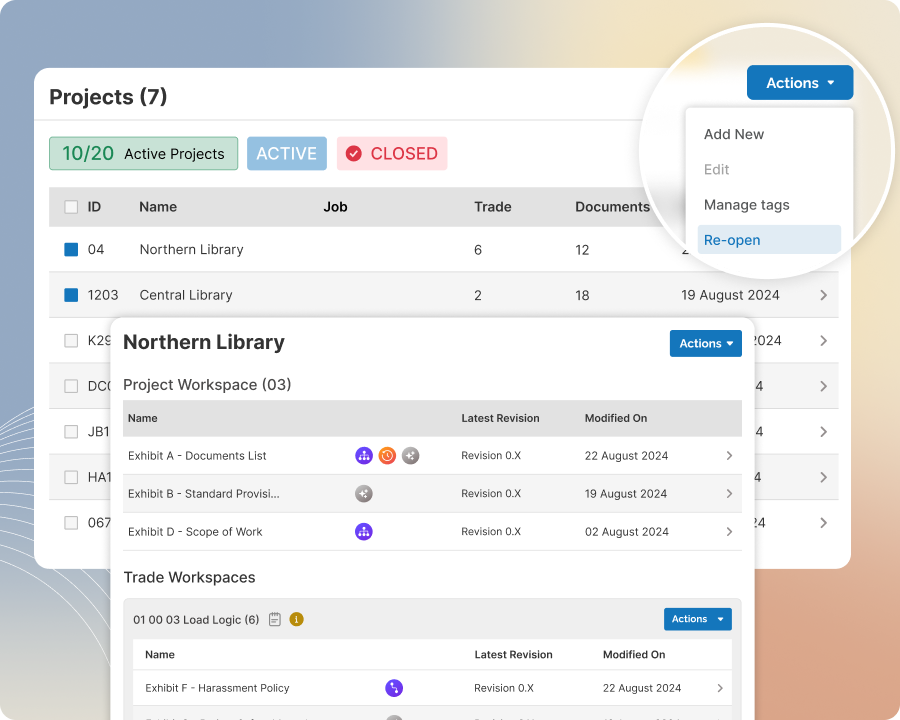
Workspaces Folders
Organize project and trade exhibits in the right folders from the start so your team can build on a solid foundation.
Create the project folder and all your trade folders in just a few clicks using a structure that aligns with your imported divisions. Use the project folder to organize exhibits used across the project and trade folders to stage trade-specific exhibits, while keeping the flexibility to merge, split, or adjust folders as the bid package takes shape.
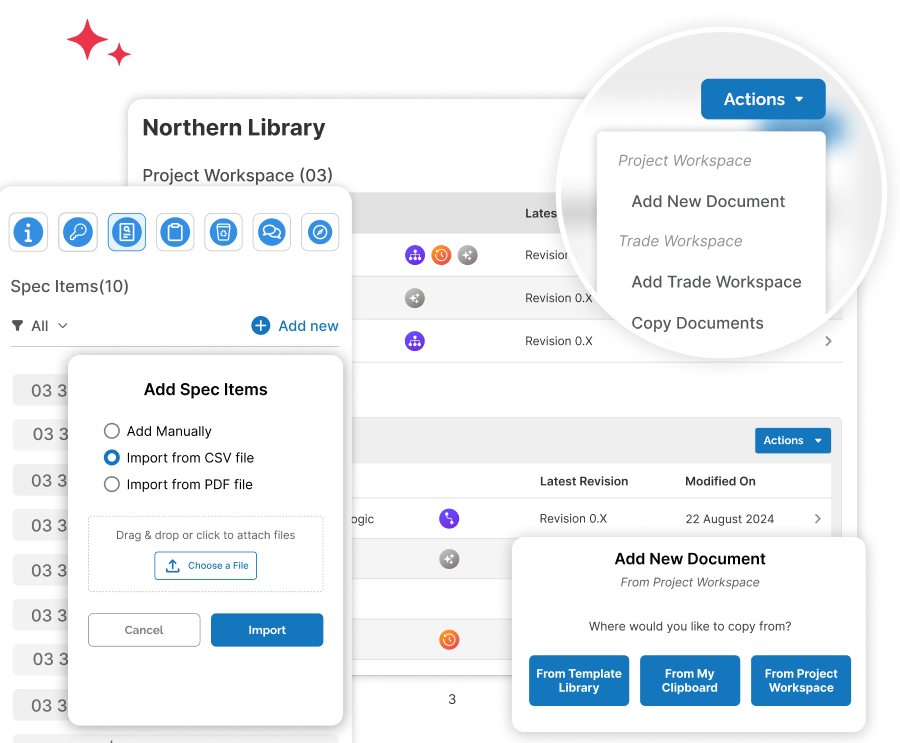
Quick Exhibit Setup
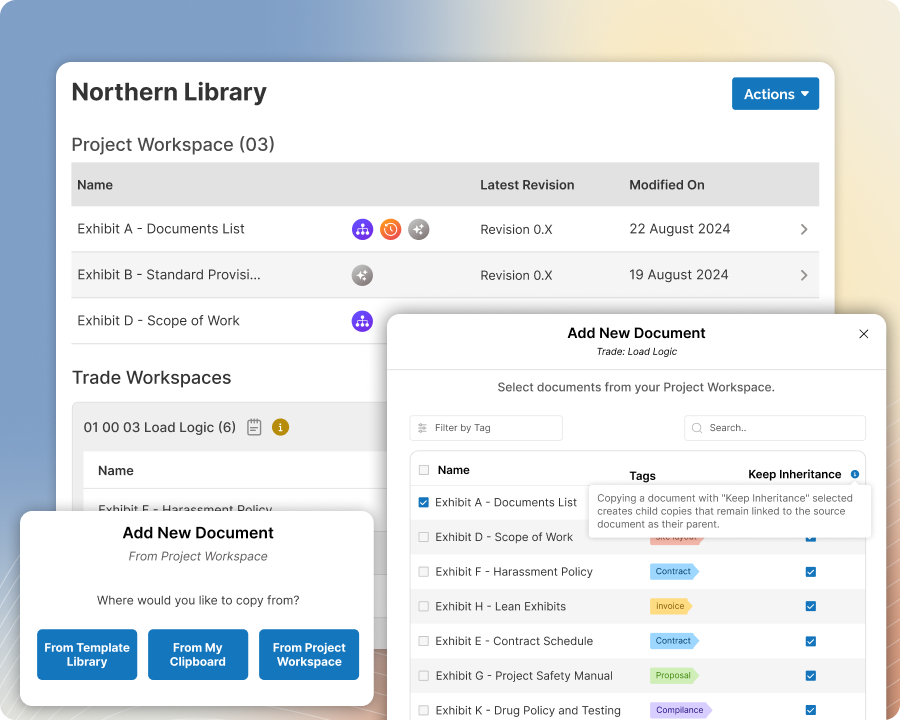
Start each project with the right exhibits in the right workspaces so your team starts with a solid foundation to build upon.
Seamlessly identify and copy all relevant templates from the Template Library into the correct project and trade workspaces. Use document inheritance for trade exhibits to improve efficiency and consistency. Automatically insert content such as inclusions and exclusions into trade-specific exhibits. With just a few clicks, give your team a solid foundation to work from.
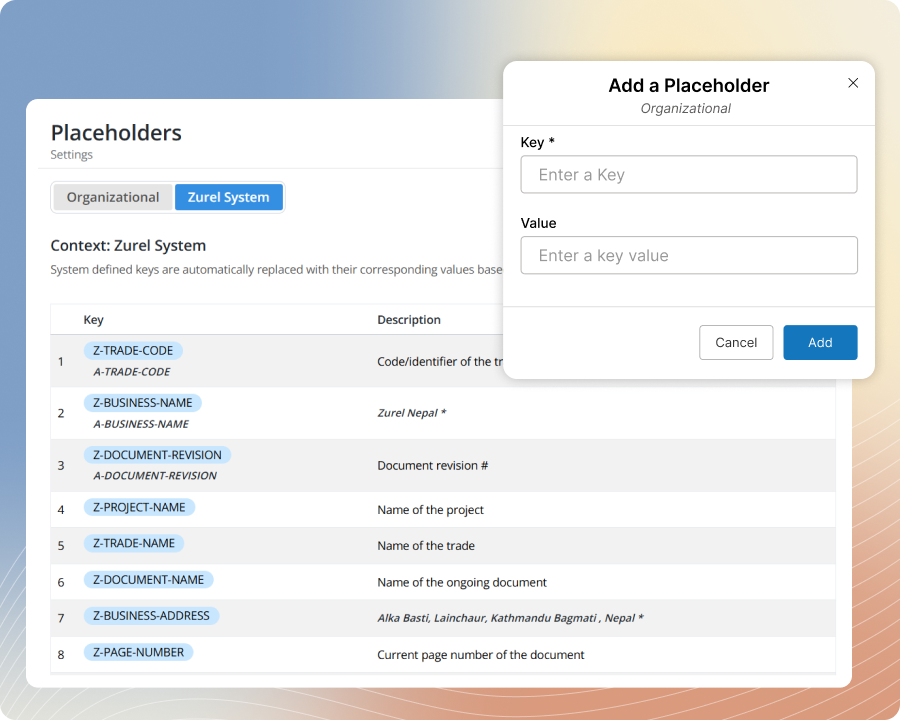
Magic Placeholder
Keep all project exhibits consistent and accurate by updating placeholder values just one time.
Instead of doing a traditional, cumbersome find-and-replace across all the placeholders in all your project documents, assign a value to each placeholder just once at the project or trade level. All matching placeholders across the project’s exhibits update at once, helping your team work faster and keep content more consistent and accurate.